All Linux and Unix servers are managed manually or by automation tools such as Ansible using ssh. For example, say you have a server at Linode or AWS. Then you copy your public ssh key to a remote cloud server. Once copied, you can now login to those servers without a password as long as ssh keys are matched. It is the best practice. Unfortunately, you are not protecting ssh keys stored on a local desktop or dev machine at $HOME/.ssh/ directory. If your keys are stolen, an attacker can get access to all of your cloud servers, including backup servers. To avoid this mess, we can protect our ssh keys stored on local dev/desktop machines using physical security keys such as YubiKey.

In both cases, you need to insert your YubiKey (or any FIDO2 compatible hardware key) into a USB port and complete the authentication. In other words, ssh login will not work when malware or attacker has stolen your passphrase and ssh keys as they can not insert YubiKey and press the button on it to complete OTP for ssh keys.
Contents
What is a YubiKey?
The YubiKey is a hardware authentication device manufactured by Yubico to protect access to computers, networks, and online services that supports one-time passwords, public-key cryptography, authentication, and the Universal 2nd Factor (U2F) and FIDO2 protocol. See how Yubikey works for more details.
FIDO/U2F OpenSSH support
It would be best to have at least OpenSSH version 8.2 or above installed on both client and server. OpenSSH version 8.2 or above adds support for FIDO/U2F hardware authenticators to OpenSSH. U2F/FIDO are open standards for inexpensive two-factor authentication hardware that are widely used for website authentication. In OpenSSH, FIDO devices are supported by new public key types “ecdsa-sk” and “ed25519-sk”, along with corresponding certificate types.
Linux/Unix/macOS desktop requirements
- OpenSSH version 8.2+
- Linux/Unix/macOS/*BSD operating system
My ssh client and server set up
Here is what I have on my Linux desktop and server:
# Get my client/desktop side Linux info
ssh -V
lsb_release -a
#
# Get my server side info
#
ssh linode-nixcraft-01 -- lsb_release -a
ssh linode-nixcraft-01 -- dpkg --list | grep openssh-server
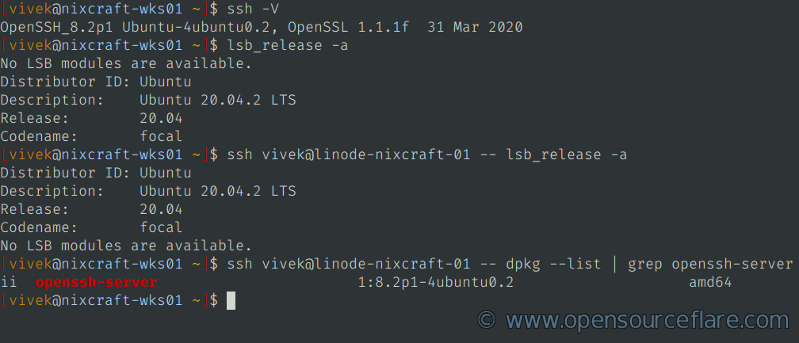
The absolute minimum requirement is OpenSSH version 8.2 met correctly
Finding YubiKey firmware version
Is YubiKey detected on my Linux? Run:
lsusb | grep Yubico
Here is what I see:
Bus 001 Device 022: ID 1050:0407 Yubico.com Yubikey 4 OTP+U2F+CCID
Now pass the USB ID (1050:0407) as follows to find out other info about the key:
lsusb -d 1050:0407 -v 2>/dev/null
lsusb -d 1050:0407 -v 2>/dev/null | more
# just list the firmware version
lsusb -d 1050:0407 -v 2>/dev/null | grep -i bcddevice
My firmware version:
bcdDevice 5.12
Creating a new YubiKey U2F/FIDO2 protected ssh key pair
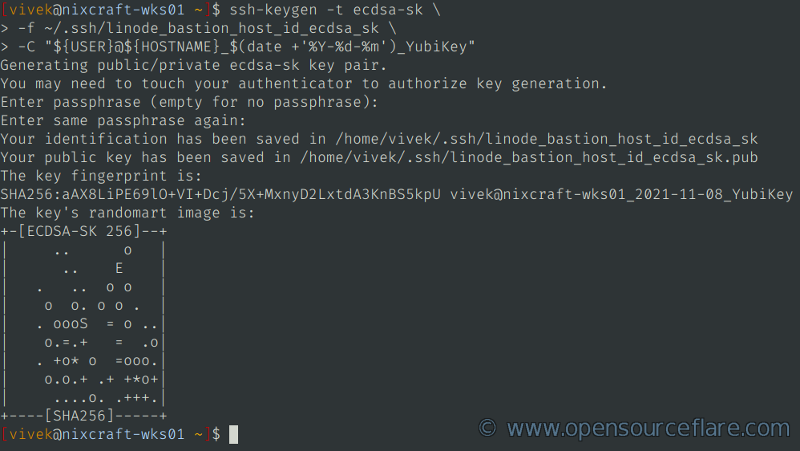
On the desktop (dev) computer, generate a key pair for the protocol as follows. First, insert the YubiKey in USB port and then type:
ssh-keygen -t ecdsa-sk # Older YubiKey firmware
ssh-keygen -t ed25519-sk # YubiKey firmware version 5.2.3+ needed
# For example, set ssh key path (-f) and comment (-C)
ssh-keygen -t ecdsa-sk \
-f ~/.ssh/linode_bastion_host_id_ecdsa_sk \
-C "${USER}@${HOSTNAME}_$(date +'%Y-%d-%m')_YubiKey"
A note about enrollment error
On older firmware version, you will get an error when your run ssh-keygen -t ed25519-sk command that read as follows when your YubiKey version does not support the type of key:
Generating public/private ed25519-sk key pair.
You may need to touch your authenticator to authorize key generation.
Key enrollment failed: requested feature not supported
Example for the ed25519-sk ssh key type
My YubiKey firmware version is as follows:
lsusb -d 1050:0407 -v 2>/dev/null | grep -i bcddevice

  bcdDevice            5.43
Let us create it:
ssh-keygen -t ed25519-sk \
-f ~/.ssh/AWS_bastion_host_id_ed25519-sk \
-C "${USER}@${HOSTNAME}_$(date +'%Y-%d-%m')_YubiKey"
Sample outputs:
Generating public/private ed25519-sk key pair.
You may need to touch your authenticator to authorize key generation.
Enter passphrase (empty for no passphrase):
Enter same passphrase again:
Your identification has been saved in /home/vivek/.ssh/AWS_bastion_host_id_ed25519-sk
Your public key has been saved in /home/vivek/.ssh/AWS_bastion_host_id_ed25519-sk.pub
The key fingerprint is:
SHA256:wseSOr11MY7X030OiOfjRx5mMIwSPt9GL8yMBRqbmy0 vivek@nixcraft-wks01_2021-16-08_YubiKey
The key's randomart image is:
+[ED25519-SK 256]-+
|                 |
|        o .      |
|       . * +     |
|     . oB . *    |
|      = SBoO +   |
|     o +Eo+=Bo*. |
|    o . o.=.=*o.o|
|     . o o o..oo.|
|      .    .oo  .|
+----[SHA256]-----+
Copy and install the public ssh key
Next, you can run the scp/rsync or ssh-copy-id script to copy your public key file to your account on the remote server
ssh-copy-id -i ~/.ssh/linode_bastion_host_id_ecdsa_sk.pub \

vivek@linode-nixcraft-01
For AWS:
ssh-copy-id -i ~/.ssh/AWS_bastion_host_id_ed25519-sk.pub \

vivek@aws-nixcraft-bastion-elb-001
Sample session (you may be promoted for the password):
/usr/bin/ssh-copy-id: INFO: Source of key(s) to be installed: "/home/vivek/.ssh/linode_bastion_host_id_ecdsa_sk.pub"
/usr/bin/ssh-copy-id: INFO: attempting to log in with the new key(s), to filter out any that are already installed
/usr/bin/ssh-copy-id: INFO: 1 key(s) remain to be installed -- if you are prompted now it is to install the new keys

Number of key(s) added: 1

Now try logging into the machine, with:   "ssh 'vivek@linode-nixcraft-01'"
and check to make sure that only the key(s) you wanted were added.
The above command appended the linode_bastion_host_id_ecdsa_sk.pub public key file to the remote ~/.ssh/authorized_keys file on server named linode-nixcraft-01 where you want to login using Yubikey U2F/FIDO2. Make sure update your ~/.ssh/config file:
Host linode-nixcraft-01
	Hostname 1.2.3.4
	User vivek
	IdentityFile ~/.ssh/linode_bastion_host_id_ecdsa_sk
See nixcbz[failed to get contents] - contact @ [email protected] with the url for more info.
Test it
Now try to log in using the key (first insert the Yubikey and then type or hit the Enter key):
ssh -i ~/.ssh/linode_bastion_host_id_ecdsa_sk \

vivek@linode-nixcraft-01
And voila. YubiKey based SSH login will only work as long as you press the button on the Yubikey. You can now remove older keys from your server. See the following man pages using the man command:
man ssh_config

man ssh-keygen

man ssh

man sshd
Should I still put a passphrase on my ssh key?
Yes. I recommend putting a passphrase for all your ssh keys. Thus now you have a passphrase and hardware key as 2FA.
How do I deal with lost or broken Yubikey?
The whole point of Yubikey is to prevent misuse. But it is human nature, and Yubikey might go broken or lost. To avoid such a problem, buy two Yubikeys. Use both keys to generate ssh-key pairs and install both public keys on remote servers. Then you can use the backup key when such a need arises. Apart from two backup keys, always keep verified backups of all critical data, including your private and public ssh keys stored in ~/.ssh/ directory.
Summing up
This quick guide explained how to configure two-factor authentication (2FA) with YubiKeys hardware USB key on ssh sessions to get maximum possible protection for your ssh-keys. Make sure you read our my guides published on nixCraft, such as:
- Top 20 OpenSSH Server Best Security Practices
- How to audit SSH server and client config on Linux/Unix
If you have any questions or feedback, feel free to leave a comment.
Would love to read, but despite being a supporter on Patreon, I can’t unlock it. Just keep being returned to the same sneak peek.
same here did u ever unlock it i wish i saw your comment before signing up
1. Click on the UNLOCK with PATRON at the bottom of the screen
2. When asked, you need to provide access email ID, including JS access (blocked in browser extensions such as adblock or script bloc) by default. There are no ads or tracking on https://www.opensourceflare.com/ so please white list https://www.opensourceflare.com/ domain.